 Guacamole
About
Apache Guacamole is a clientless remote desktop gateway. It supports standard protocols like VNC, RDP, and SSH.
- Questions? Ask in the Cloudron Forum - Guacamole
- Guacamole Website
- Guacamole support
- Guacamole issue tracker
User management
Apache Guacamole is configured to use Cloudron's OIDC Provider. To grant a user access to a resource, you have to manually create the user in Guacamole (Settings -> Users). Only a username is required and will be mapped to Cloudron's username.
Guacamole also maps a user's group. To assign permissions to a group, create the group using its Cloudron group name (Settings -> Groups).
RDP
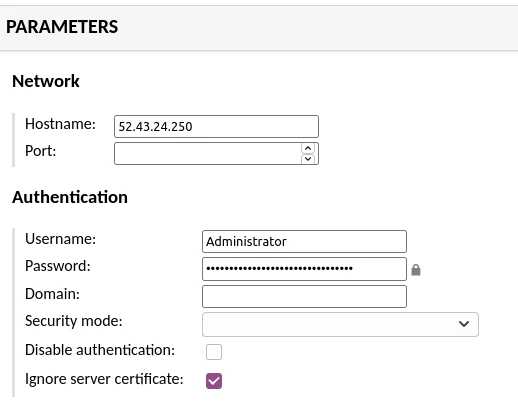
Most Windows/RDP servers do not have a valid certificate installed. For this reason, check the ignore server certificate checkbox in the Parameters section.
Guacamole menu
The Guacamole menu is a sidebar which is hidden until explicitly shown. On a desktop or other device which has a hardware keyboard, you can show this menu by pressing Ctrl+Alt+Shift. If you are using a mobile or touchscreen device that lacks a keyboard, you can also show the menu by swiping right from the left edge of the screen.
See the docs for more information.
Extensions
Extensions can be downloaded from the Apache Guacamole releases page. They are packaged as tar.gz and when extracted have a jar file inside them.
To add an extension:
- Upload the jar file (and not .tar.gz) to
/app/data/extensionsusing the File manager - Restart Guacamole
Recording
The plugin guacamole-history-recording-storage enables the recordings of sessions.
Download the version that fits your Guacamole installation from https://guacamole.apache.org/releases/.
Upload the .jar file from inside the archive to your Guacamole app /app/data/extensions with the Web File Manager or the Web Terminal.
With the Web Terminal create a folder for the recordings:
mkdir -p /app/data/recordings
chown -R cloudron:tomcat /app/data/recordings
chmod 2750 /app/data/recordings/
Edit the configuration file /app/data/guacamole.properties with the Web File Manager or the Web Terminal and add the following line:
recording-search-path: /app/data/recordings
Restart the app.
With an Admin user you can now edit your connections and under Screen Recording set the following configurations:
Recording path:to${HISTORY_PATH}/${HISTORY_UUID}Recording name:to${GUAC_DATE}-${GUAC_TIME}Automatically create recording path:checked
Save the configuration of the connection.
If you now start a session recording files are stored under /app/data/recordings and viewable with the history viewer.
Custom properties
Some extensions require adding custom properties. Add these using the File manager
by editing /app/data/guacamole.properties. Restart the app after you make changes.
Branding
To change the logo and style, you have to use an extension. You can start with the zipping the contents in this repo.
zip -r /tmp/guacamole-branding-example.jar ./inside the directory to create the jar file.- Upload it using the File manager to
/app/data/extensions - Restart Guacaomole
The login screen should already be different now. You can now modify the guacamole-branding-example.jar as needed to make changes.
Note that a jar file is just a zip archive. Just extract it, change files and compress it again. When re-creating
the jar file, make sure that the files are at the top level and not inside a sub directory.